20 mins
How to track your leads and follow-ups so nothing falls through the cracks — with free templates for Notion and Trello and instructions for setting up your own system from scratch.
Tracking your leads:
Tracking your leads is important for staying on top of your follow-ups. If you don't follow up, you're unlikely to get clients. Here are some ways you can track them (as usual my favorites are starred like this: ⭐️):
- ⭐️ Notion - more complex but a great all-around customizable management tool. Has notifications & due dates!

- Google Sheets - An online spreadsheet platform. It’s simple, but effective for some. It does not have reminders, so you may want to use Google Tasks, Apple Reminders, or Google Calendar so you don’t forget.
If you’d rather use a different platform or method for tracking, you can try one of these other options:
Unfortunately, none of these have a template option. There are instructions below for what I recommend including in your tracker.
- ⭐️ Trello - primarily a kanban style project manager with option paid upgrades.
- ⭐️ Asana - has notifications, ways to add your own tags, comments, and list sorting features
- Google Calendar - a bit clunky for this but it'll do!
- "Sent Method" - go back into your your LinkedIn messenger and follow up with everyone you sent an LOI to in the past 30 days. (only works if you “add a note” to every connection request you send!!)
- Paper Tracker - keep a list in a notebook
- Monday - kind of like Asana but with more options.
- iPhone/Mac Reminders App - can also be used in combination with any of these other tools!
What to include in your homemade tracker
If you want to use a different platform that I don’t have a template for (ugh, Asana, make templates shareable!!), here’s what you should have at a minimum:
These funnel stages:

- Dates for follow ups (I do 2 date fields) and when you last edited that company
- I also added an additional tags field that let’s me tag them by niche since I have multiple niches and funding so I can prioritize based on biggest budget → smallest budget.
Beyond that, customize it however you want!!
I track by company and then put the info of the specific people I talk to in the notes or comments of that company. If you’re using a spreadsheet, you might want multiple columns for names and titles instead.
Even if you don’t use Notion or Trello, I highly recommend opening those templates to check them out so you can replicate them easily. There are instructions in each to help guide you!
How to Duplicate my Template to Your Notion
- Click the duplication link and then click the two overlapping squares in the top right of your screen on the template page.
- Choose your workspace and click “Add.” It will take a minute or two for the template to duplicate to your workspace.
- Choose “see template” from the pop up in the bottom left corner OR go to your sidebar (on the left side of your screen) and scroll to the bottom to locate it.


Pop up:

Side Bar:

How to import a big list into Notion
Once you’ve got your ideal clients list, you can bulk import it into notion by:
- Find the “Table” view, create a new table view, OR go to “Import Ideal Clients List Here”.
- Skip this step if you’re in the “Import Ideal Clients List Here” view.
- Scroll to the bottom of the table and click “new page.” A box will pop up with a blinking cursor. Click outside of the table (anywhere to the left) and the box should turn blue.
- Head to your ideal clients list (a spreadsheet, doc, note, etc. will work as long as each company name is on a new line or in a new cell). Copy all the company names. Go back to Notion and just type command + V or win + V to paste the company names into your Notion tracker.
In the top left-hand corner of the tracker, you’ll see “board” highlighted in gray. If you’re on a small screen, click “board” and you’ll see other view options. On a larger screen, choose “# more” to the right of “board” to see more options.

Once you’re in the table view, find the “filter” icon near the blue “new” button and filter by tags → Ideal Clients. That way, anything you import will automatically get tagged as an “ideal client” and end up in the first column in the “board” view of your tracker.


⚡️ If you’re struggling with this, try pasting your list into a spreadsheet, copy it from the spreadsheet, and paste it into Notion from there. Notion can be fnicky with formatting sometimes.
⚡️ If you’re on Google Chrome, just type “docs.new” into your Google Chrome address bar to pull up a new blank spreadsheet! 😊
Now you’ve got a tracker full of your ideal clients 🎉
How to duplicate my template to your Trello
- Go to: https://trello.com/invite/b/6999ef16a1690796b38f6f9c/ATTI3ba85a2dff8773987d4b95960a4dfef8780D791B/ideal-clients-tracker-2026
- Choose “create board from template,” input your title and workspace, and then click “create.”

That’s it!
To start using the Trello tracker you should:
- Create tags for the things you want to be able to filter by (maybe funding, niche, or something else)
- Add your ideal clients (you should just be able to copy and paste a list or a spreadsheet)
a. Copy up to 60 cells in a spreadsheet or 60 lines in a doc/note
b. Choose “add card” in the Ideal Clients column
c. Paste
d. Choose “add card” and then “create [#] cards” – don’t navigate away until the full list you pasted loads in Trello.
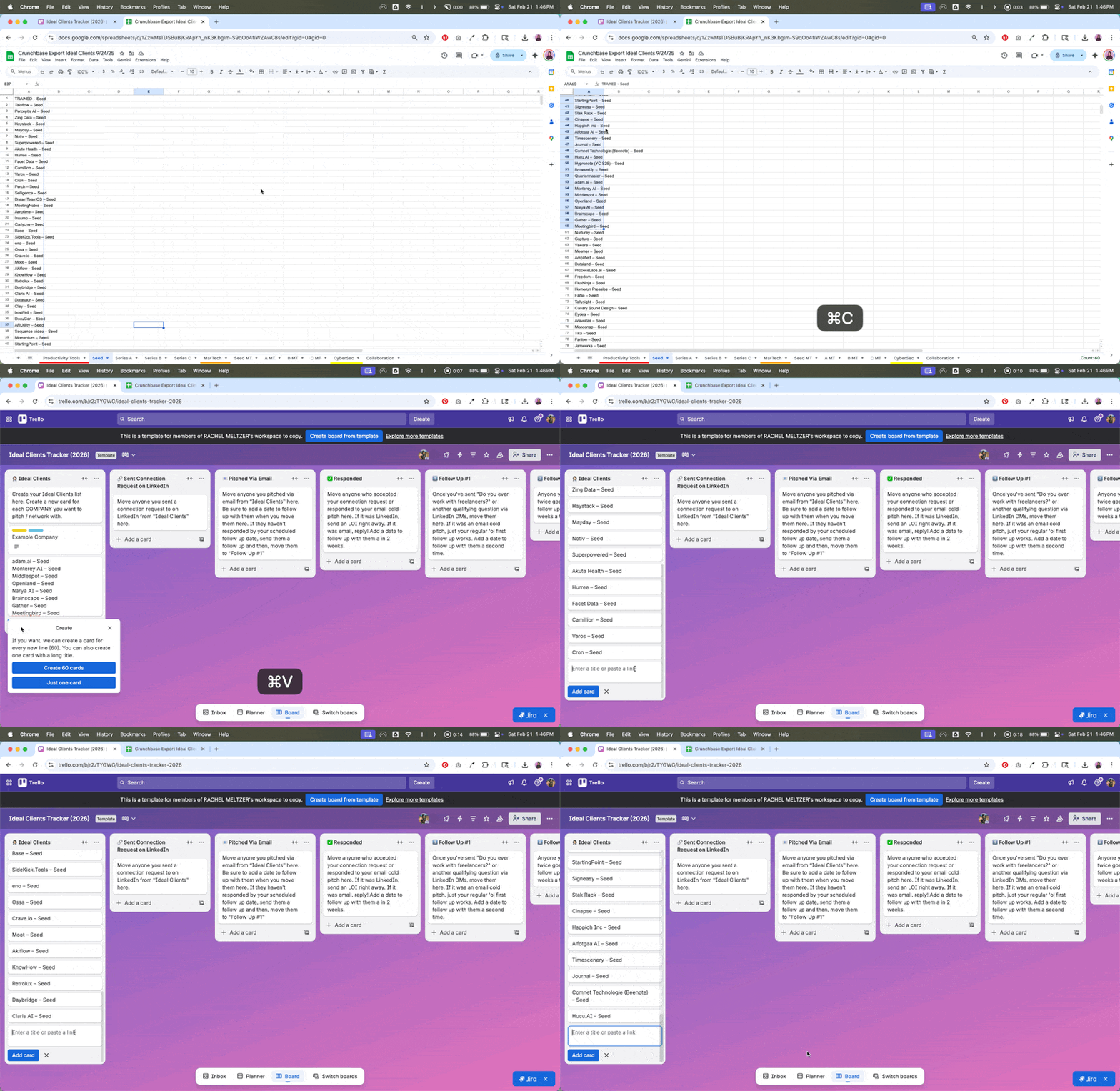
⚡️ accidentally paste something twice? You can just archive that card!
Looking for something else?


© 2026 MeltzerSeltzer. All rights reserved.
 Terms of Service – MeltzerSeltzerPrivacy Policy – MeltzerSeltzer
 Cancellation Policies